CloudPilot
Synchronized control of Windows desktops
Connect 2–100 running Windows instances in a synchronized workspace. Mouse and keyboard input from the master is sent to selected followers. Individual RDP tabs are not required first.
Updated October 15, 2026
Select instances and open Sync control
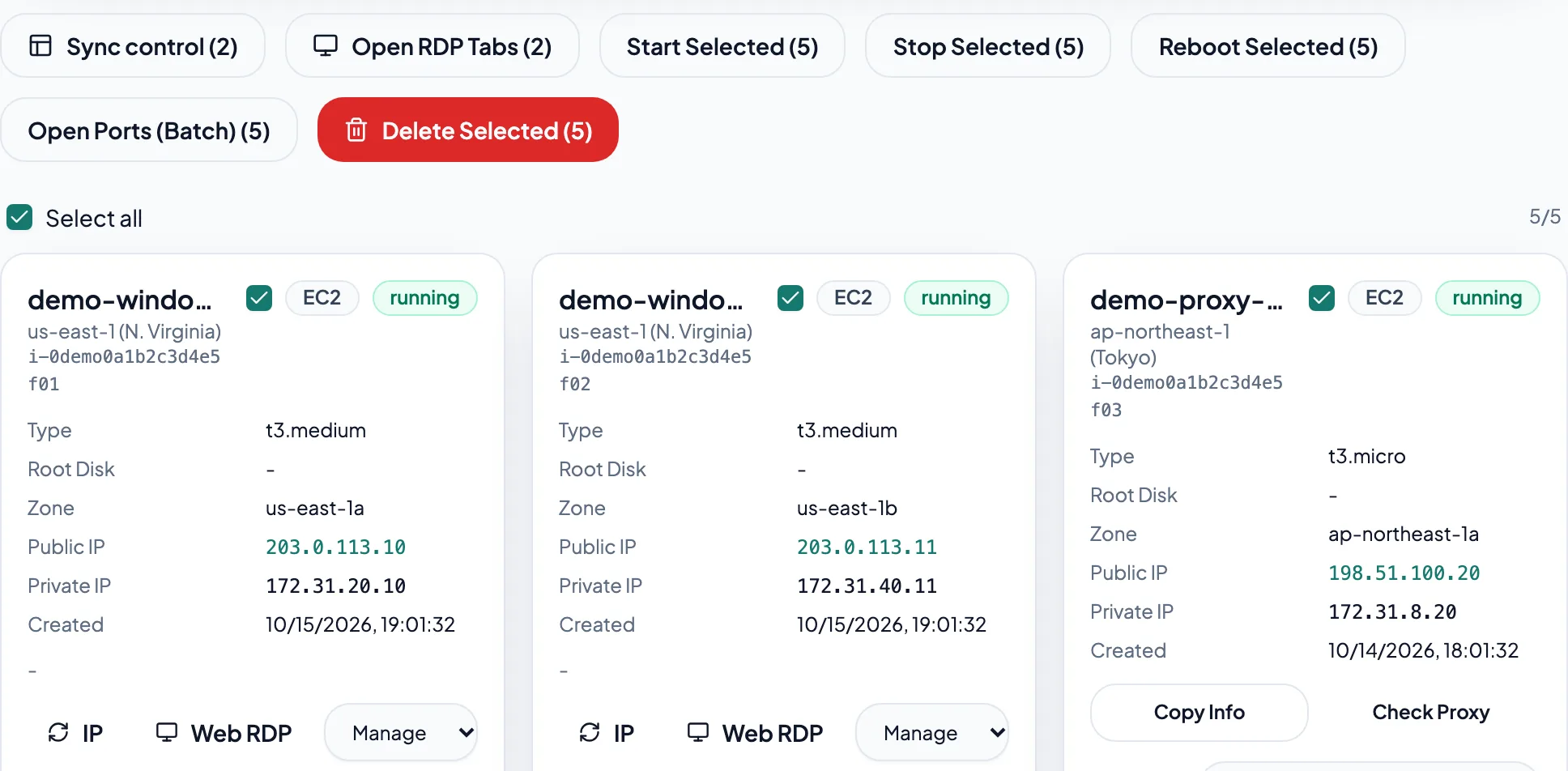
Select running Windows instances in the dashboard and choose Sync control. Check the workspace list, then choose Connect and sync. Synchronization starts when the requested desktops are ready. Resolve any failed connections first.
Align desktops before broadcasting
Choose Connect only when desktops need preparation. While paused, click a preview to change the master and align windows, zoom, pages and dialogs individually. Then choose Start sync. Input uses coordinates and keys; it does not identify equivalent buttons on different pages.
View desktops at equal size
While sync is paused, choose Equal view to arrange all desktops at the same size. Choose Auto, 2, 3 or 4 columns; narrow screens use fewer columns. The current master is highlighted; click another desktop to make it master. Mouse and keyboard input still goes only to the master. Expand Master tools for clipboard and shortcut controls. Start sync or Connect and sync automatically restores Master view and disables Equal view until sync is paused. Switching views neither reconnects sessions nor changes remote resolutions.
Check connection state and follower selection
Followers must be connected, selected and have matching display dimensions. Sync stays enabled across focus changes, master changes and brief delays. Unexpected disconnects reconnect automatically in Connect only mode, while sync is paused and with Follow unchecked, preserving the existing selection. Refreshing or reopening the same workspace link in this browser restores connections, the master, Follow selections and layout for up to 7 days, with live sync paused. Pause sync stops input broadcasting only; Disconnect all stops connections and retries. Resized desktops rejoin when their dimensions match.
Share a desktop in another tab
Choose Open in tab on a master or follower to view the same desktop without another Windows login. In the same browser, account and credential profile, opening Web RDP from the instance list also prefers an existing sync connection. Other browsers or desktops without a sync connection use independent RDP. Shared tabs also reconnect independently if their source workspace closes.
Take control, then restore following
Choose Take control in the shared tab to stop synchronized input to that desktop. Taking the master pauses live sync. Control is unavailable during recording or replay, and only one tab can control a desktop at a time. Return to view only or close the tab, then align the desktop and manually restore Follow or Start sync in the workspace. Shared tabs restore their previous control mode after outages, rejoin a refreshed workspace, or reconnect independently if it closes. Explicitly choosing Disconnect all in the source stops automatic recovery. Closing a shared tab leaves the original connection intact.
Pause and leave
Closing the sync workspace ends shared viewing. Interrupted shared tabs retry joining and return to view-only mode. The workspace supports text clipboard sharing; while paused, text goes only to the master. Use a desktop browser for typing, right-clicking and dragging.