CloudPilot
First steps: sign in, deploy, connect
CloudPilot brings AWS EC2, Lightsail and Wavelength deployment, connections and everyday management into one workspace. Start with one instance, verify that it works, then use batch operations.
Updated October 15, 2026
Sign in to CloudPilot
New users must sign up with GitHub from the sign-in page. Existing users can still use their email and password or linked GitHub account, and check that your CloudPilot access is active before performing AWS operations.
Get and add AWS credentials
Follow Get AWS credentials and manage profiles to obtain a key ID and secret, plus a Session Token for temporary credentials. Save and select the profile in Credentials, then check the dashboard’s Current credential.
Choose a deployment type
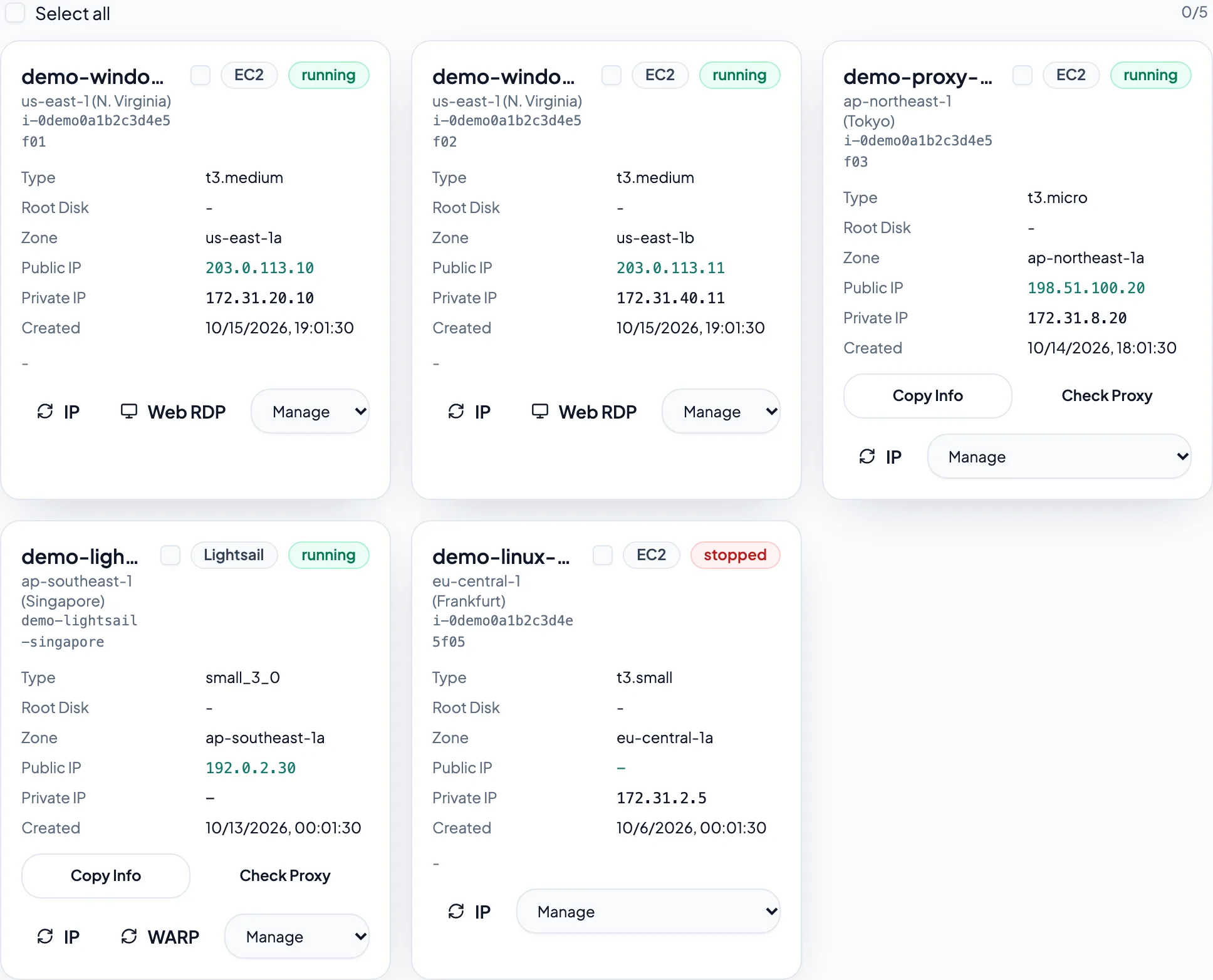
Open the EC2 or Lightsail creation dialog. Choose a region, operating system, size, disk and count. For a first Windows desktop, use a built-in Windows image and set its administrator password.
Identify Windows desktops in a batch
When creating several EC2 Windows instances in one deployment, default names are Win-01, Win-02 and so on. Custom names receive -01, -02 and subsequent suffixes. Numbering continues across regions within the batch and restarts at 01 for each new deployment. Single-instance deployments keep the original name.
Wait for initialization, then open Web RDP
Watch deployment results and instance status. Running does not always mean Windows, networking and preinstalled software are ready. Open Web RDP when initialization finishes. After a partial batch result, check successful instances before submitting again.