CloudPilot
Web RDP: connections, toolbar and shortcuts
Web RDP lets you use a Windows remote desktop directly in your browser. Each instance opens in its own tab for individual control. Use Sync control to operate several desktops together.
Updated October 15, 2026
Open a running Windows instance
Find the target instance and open Web RDP. For several instances, select them and choose Open RDP Tabs. If the browser blocks popups, allow them for this site and retry missing tabs. New instances need time for Windows and remote access services to become ready.
Disconnection or Invalid Login
Unexpected disconnections or Invalid Login automatically obtain fresh credentials and retry. You can also choose Reconnect, or Stop reconnecting to cancel. If only Back to dashboard appears, open Web RDP again from the instance list. Refreshing an old link or repeatedly choosing Guacamole Login may not restore access. Sign in to the dashboard first if its session has expired.
Open the toolbar with its icon
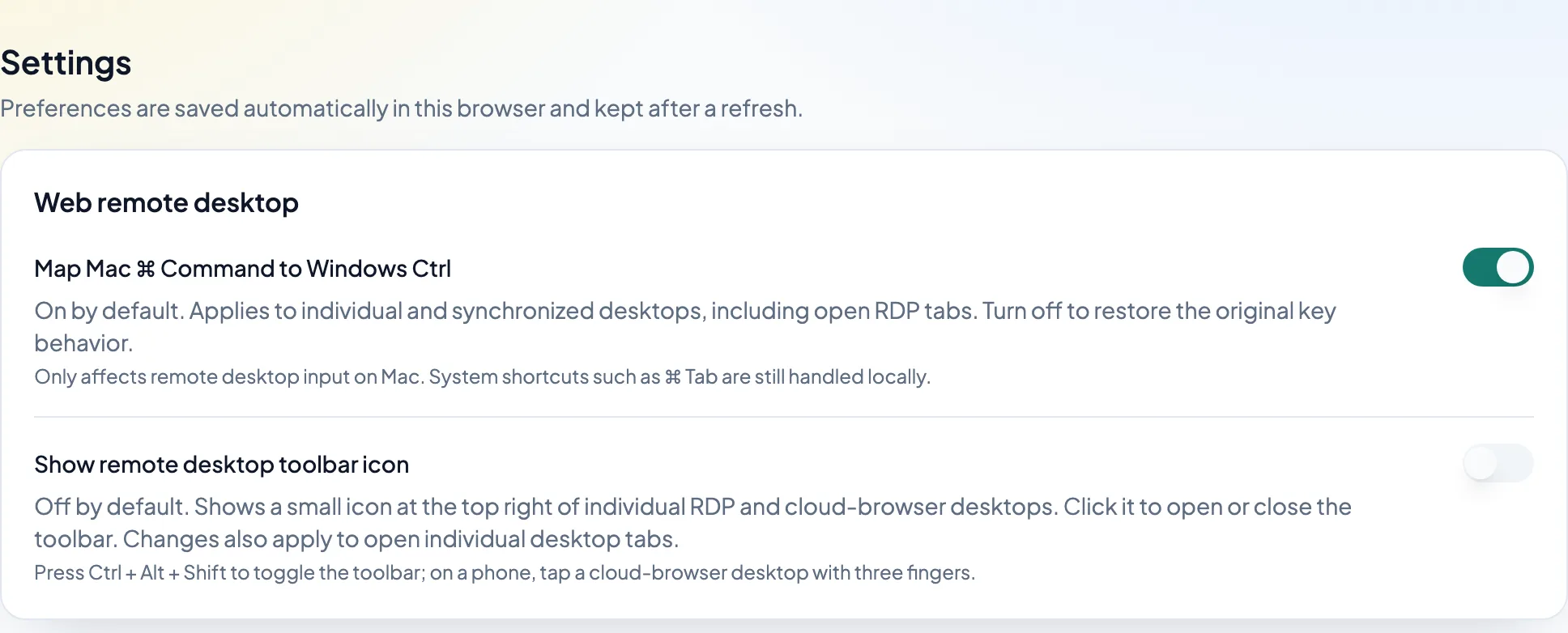
In Settings → Web remote desktop, enable Show remote desktop toolbar icon. Click the teal button at the top right to open or close the toolbar. The preference is off by default; Ctrl + Alt + Shift still opens the toolbar when the icon is hidden.
Use Mac shortcuts and display settings
Mac ⌘ Command maps to Windows Ctrl by default, so ⌘C and ⌘V send remote Ctrl+C and Ctrl+V. Turn this off in Settings if needed. System shortcuts such as ⌘Tab stay local. The toolbar includes display scaling, an on-screen keyboard and text input options.